

See also: Journeys REST API reference for request/response shapes, status codes, and error semantics.
Overview
Journeys are multi-step customer engagement workflows that orchestrate a sequence of Next-Best-Action (NBA) decisions, waits, branches, and actions over time. Unlike a single Decision Flow that produces an instant recommendation, a journey guides a customer through a series of interactions over days or weeks.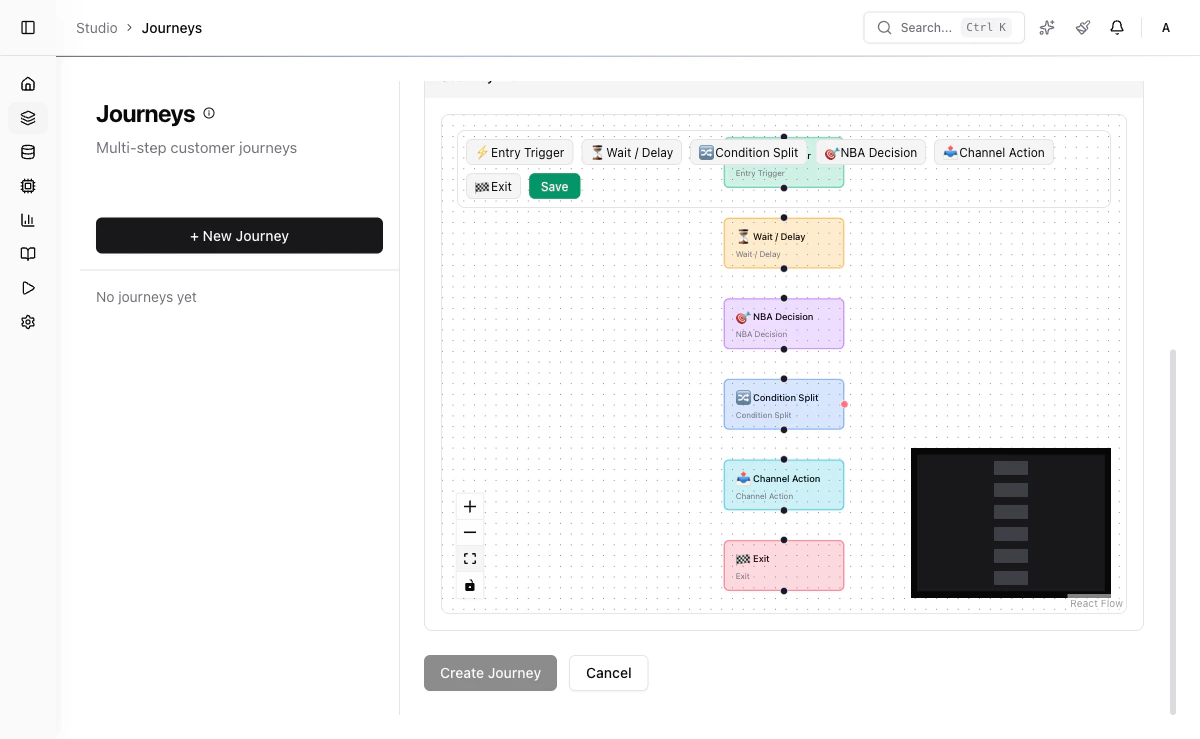
Visual Flow Editor
You build journeys using a visual drag-and-drop flow editor. Each journey is a directed graph of steps connected by transitions. The editor supports:- Drag-and-drop step placement
- Visual connection of steps with edges
- Step configuration panels
- Real-time validation of flow structure
Keyboard Shortcuts
Undo/redo buttons are also available in the editor toolbar.
Step Types
Entry Trigger Step
Defines the entry point for the journey. Customers can enter via segment membership, an inbound event, or both.Wait Step
Pauses the journey for a configurable duration before proceeding to the next step.delayHours from now, default 24). When the delay elapses, the worker advances the enrollment to the next step. The editor also shows a waitForEvent field, but event-based early resume is not yet implemented — the value is saved with the definition and ignored by the engine; only the timer resumes the journey. (To pause for an external signal, author a webhook_wait node via the API instead — see the callback endpoint.)
NBA Decision Step
Executes a Decision Flow to select the best offer for the customer at this point in the journey. This triggers an internal Recommend API call scoped to the customer.Condition Split Step
Evaluates a field condition and routes the customer to different subsequent steps based on the result.eq, neq, gt, gte, lt, lte, in, contains.
Channel Action Step
Delivers a recommendation or message through a specified channel.Exit Step
Terminates the customer’s journey with a reason code.Testing a journey (dry run)
Before activating a journey, use Test Mode to run a single customer through the whole flow and see exactly what would happen — the journey builder’s Test button (top toolbar) opens the test panel. Test Mode is a real-engine dry run: it evaluates condition splits with the production operator logic and calls the real decision engine for NBA Decision steps (previewing draft flows), so the offers you see are the offers that customer would actually get. To keep a test safe and instant, it differs from a live run in three ways:- Waits are fast-forwarded — a “wait 48h” step is recorded and stepped past immediately, so you see the full path in one run.
- Sends are simulated — Channel Action steps report what would be sent (
creativeviachannel) but deliver nothing. - Nothing is persisted — no enrollment row is created and no queue jobs are scheduled.
Test Mode and the live engine resolve each node’s type through the same helper, so a dry run cannot branch differently from the real run. They did not always: the runner read
data.nodeType before falling back to type, while the engine read type alone, so a journey created through the API or MCP with the type in data.nodeType only was routed down opposite branches of a condition split by the two. The editor writes type, so journeys authored in the studio were never affected. Both readers now share one resolver.- Customer ID (optional) — loads that customer’s real attributes, so condition splits and decisions run against real data.
- Synthetic attributes (optional JSON) — overlaid on top of (or used instead of) the real attributes, e.g.
{ "tier": "gold", "score": 72 }, to explore how a hypothetical customer would branch.
exited, completed, or an ended (...) reason such as a cycle or a dangling edge), and the visited path highlighted on the canvas with numbered badges. The API returns visitedNodeIds for the highlight and a notes list restating the fast-forward/simulation caveats.
Test Mode calls POST /api/v1/journeys/{id}/test — see the Journeys API reference.
Enrollment Lifecycle
Each customer enrollment in a journey progresses through its own lifecycle, independent of the journey-level status:
When a journey’s status changes to
paused, all active enrollments are also paused. When the journey is resumed to active, enrollments pick up where they left off. If the journey is archived, all enrollments are force-completed.
Worked Example
A retail bank wants to nurture premium customers with personalized loan offers:1
Customer enters the journey
The entry trigger fires for customers in the
premium_customers segment. Customer cust_42 enters with enrollment status active.2
Wait 2 days
A
wait step with delayHours: 48 pauses the journey. The scheduler records a resume time of 48 hours from now.3
Branch on segment
After the wait resolves, a
condition_split step evaluates customer.segment == "premium". Since cust_42 is premium, they follow the “true” edge.4
NBA Decision
An
nba_decision step triggers an internal Recommend API call with decisionFlowKey: "df_personal_loans" and limit: 1. The flow returns “Personal Loan Gold” as the top offer with a score of 0.91.5
Send email
A
channel_action step dispatches an email via channel ch_email using creative treat_loan_email_v1. The creative template is populated with the offer details from the decision step.6
Exit
The customer reaches an
exit step with reason completed. The enrollment status changes to completed.Field Reference
Step Node Fields
Entry Trigger Config
Wait Config
NBA Decision Config
Condition Split Config
Channel Action Config
Exit Config
Status Lifecycle
Creating a Journey
1
Navigate to Journeys
Go to Studio > Journeys in the sidebar.
2
Click Create Journey
Click the + New Journey button.
3
Name the journey
Enter a name and description for the journey.
4
Set max duration
Configure the maximum number of days a customer can remain in the journey.
5
Build the flow
Use the visual editor to add steps, configure each step, and connect them with transitions.
6
Define entry conditions
Specify which customers should be enrolled (segment membership, event triggers, or manual enrollment).
7
Validate
Click Validate to check the journey structure for errors (unreachable steps, missing configurations).
8
Save and activate
Save as draft, test with a sample customer, then set status to active when ready.
API Reference
Create a Journey
List Journeys
Update a Journey
Active journeys can only be updated with non-structural changes (name, description). To modify steps, pause the journey first.
Delete a Journey
draft journeys can be deleted. Active/paused journeys must be archived first.
Next Steps
Triggers
Automate journey enrollment with event-driven triggers.
Runs
Execute Decision Flows in batch against customer segments.