

Tutorial: Retail Rewards NBA Pipeline
This hands-on tutorial walks you through the entire KaireonAI platform using a sample retail rewards dataset modeled on a real loyalty-program offer pattern. You’ll set up a complete NBA pipeline — from loading data to watching models learn from customer responses. What you’ll learn:- How offers, channels, and creatives work together
- How decisioning gates and contact policies filter decisions
- How to run the Recommend API and interpret results
- How to record outcomes and see models improve
- How to read the dashboards and debug eligibility
Step 1: Load the Dataset
Navigate to Settings → Sample Data and click Load on the Retail Rewards Offers dataset.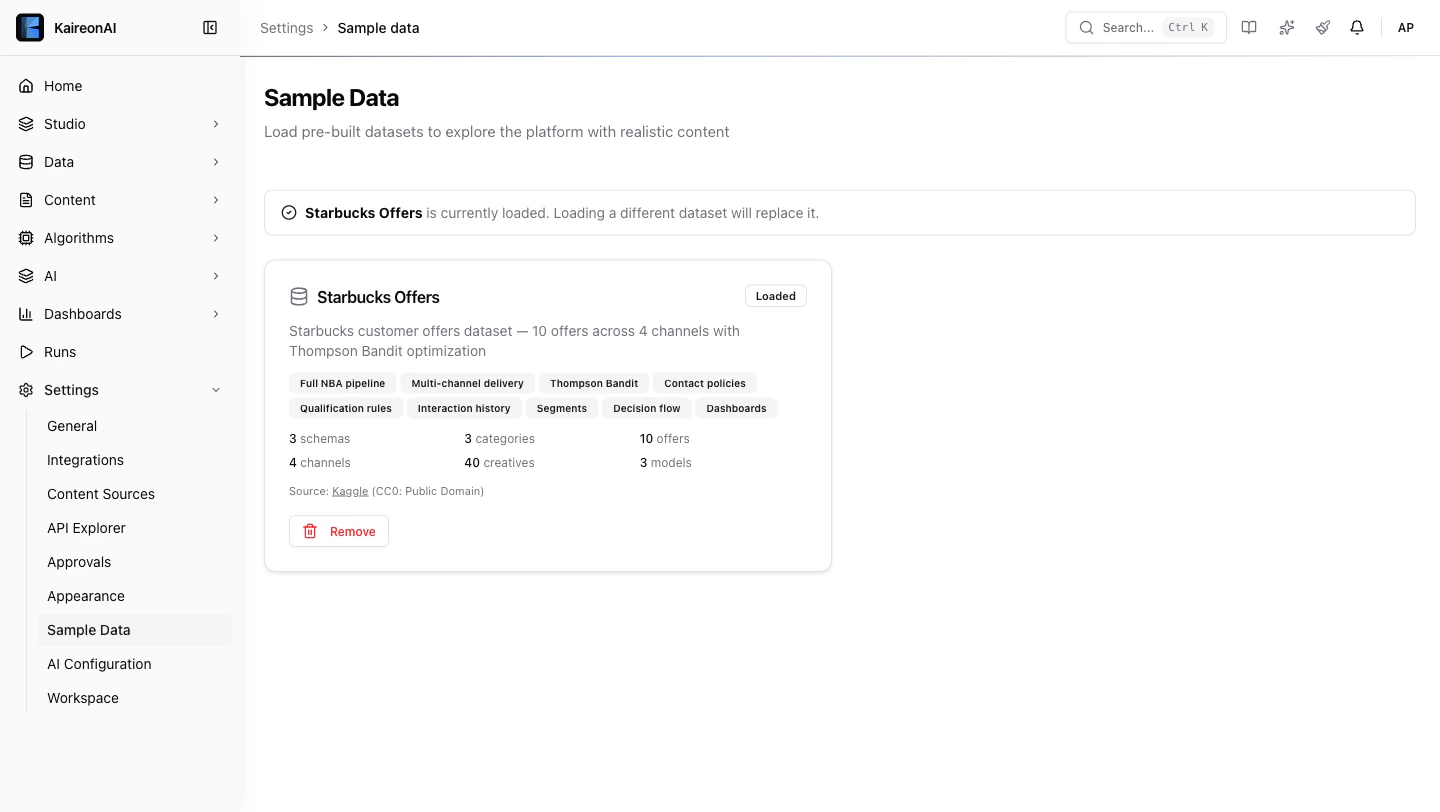
Step 2: Explore the Offers
Go to Studio → Offers. You’ll see 10 offers organized into 3 categories: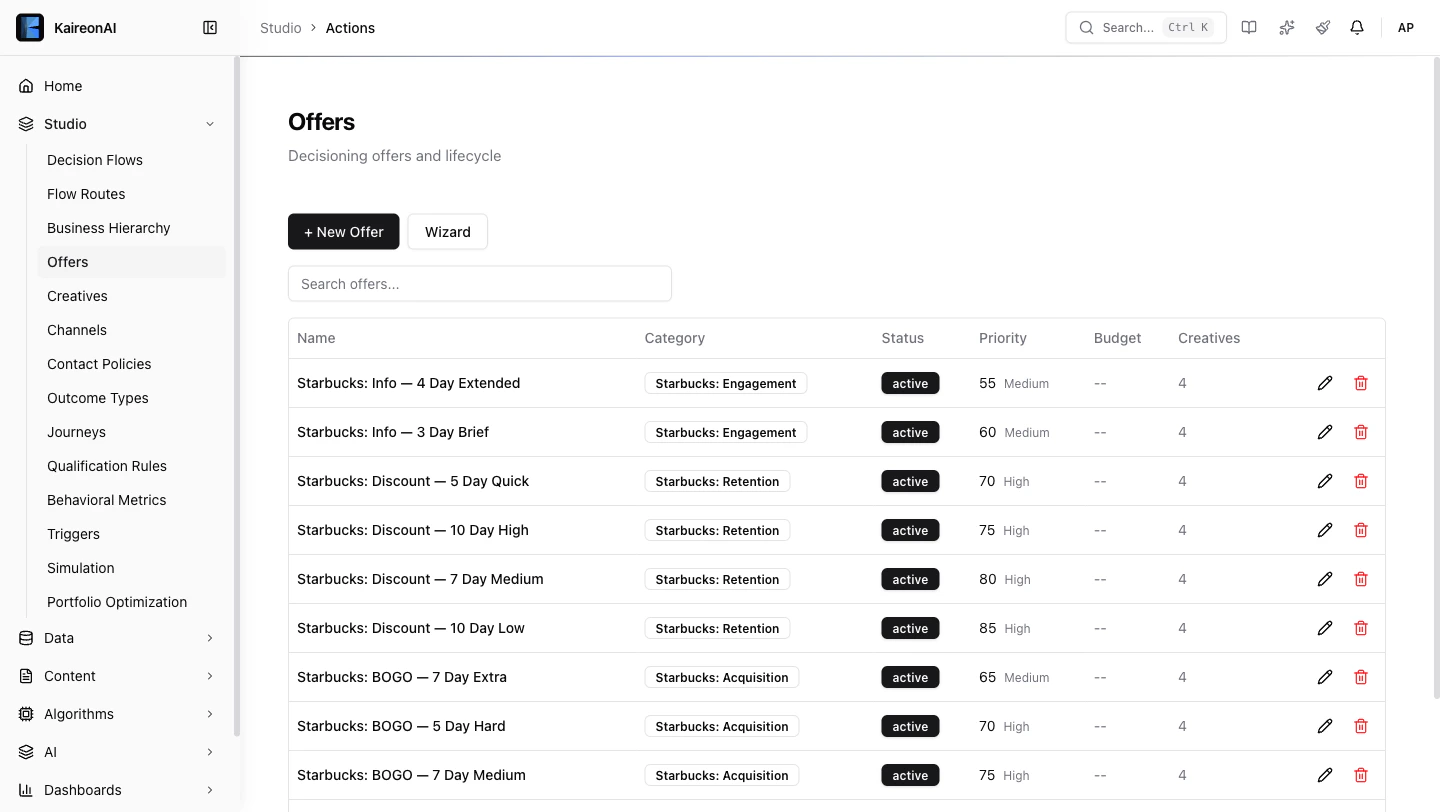
Acquisition (BOGO Offers)
Retention (Discount Offers)
Engagement (Informational)
Notice: Each offer has 4 creatives (one per channel) with channel-appropriate content — email has subject lines, mobile has deep links, social has hashtags.
Step 3: Understand the Rules
Decisioning Gates (who can receive offers)
Go to Studio → Decisioning Gates to see all 5 rules:Contact Policies (how often / when)
Go to Studio → Contact Policies:Step 4: Look Up a Customer
Go to Data → Customer Viewer and search for SBX-000042.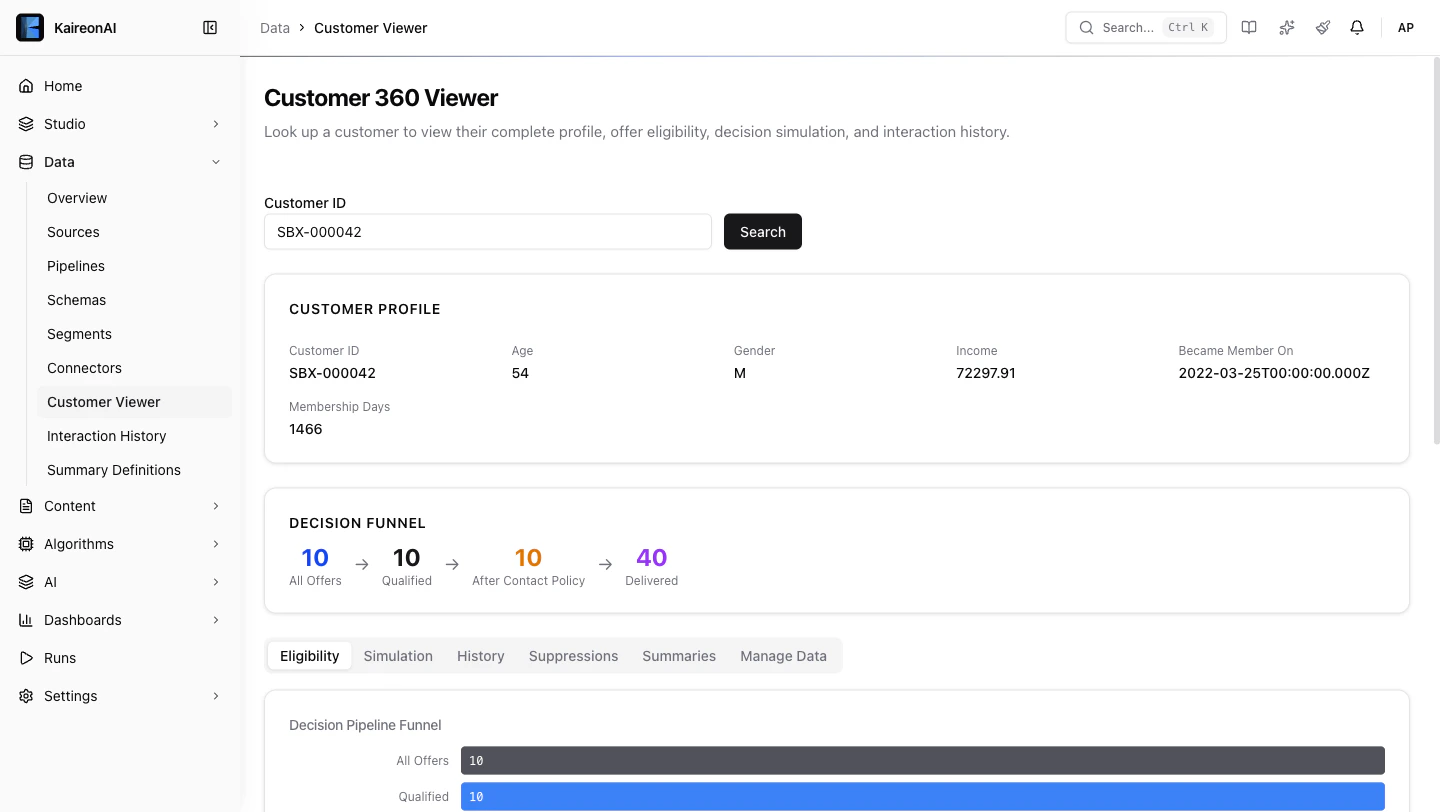
- Profile card with demographics (age, income, gender, membership days)
- Eligibility tab showing which of the 10 offers this customer qualifies for
- Pipeline funnel showing how many candidates survive each stage
- Rule detail — expand any offer to see exactly which rules passed/failed
SBX-000000 through SBX-000099, and each one’s demographics
(age, gender, income, membership tenure) are generated from a fixed random seed —
so the same ID always resolves to the same profile. Search a few and compare
which of the 10 offers each qualifies for, and watch the age and income gates
include or exclude the premium BOGO and senior discount offers.
Step 5: Run a Recommendation
From the API Explorer
Go to Settings → API Explorer and try:- decisions — the top 5 offers ranked by score
- meta — pipeline trace (totalCandidates → afterQualification → afterContactPolicy → count)
- recommendationId — save this for the next step
From curl
Step 6: Record an Outcome
When a customer responds to a recommendation, record it:Idempotency-Key header to prevent double-counting.
Try recording different outcomes:
"click"— customer clicked the offer"accept"— customer accepted/redeemed"dismiss"— customer dismissed it"convert"— customer completed a purchase
accept or convert), try recommending again — you’ll see the 48hr post-conversion cooldown kick in, suppressing offers temporarily.
Step 7: Check the Dashboards
Business Dashboard
Go to Dashboards → Business. You’ll see: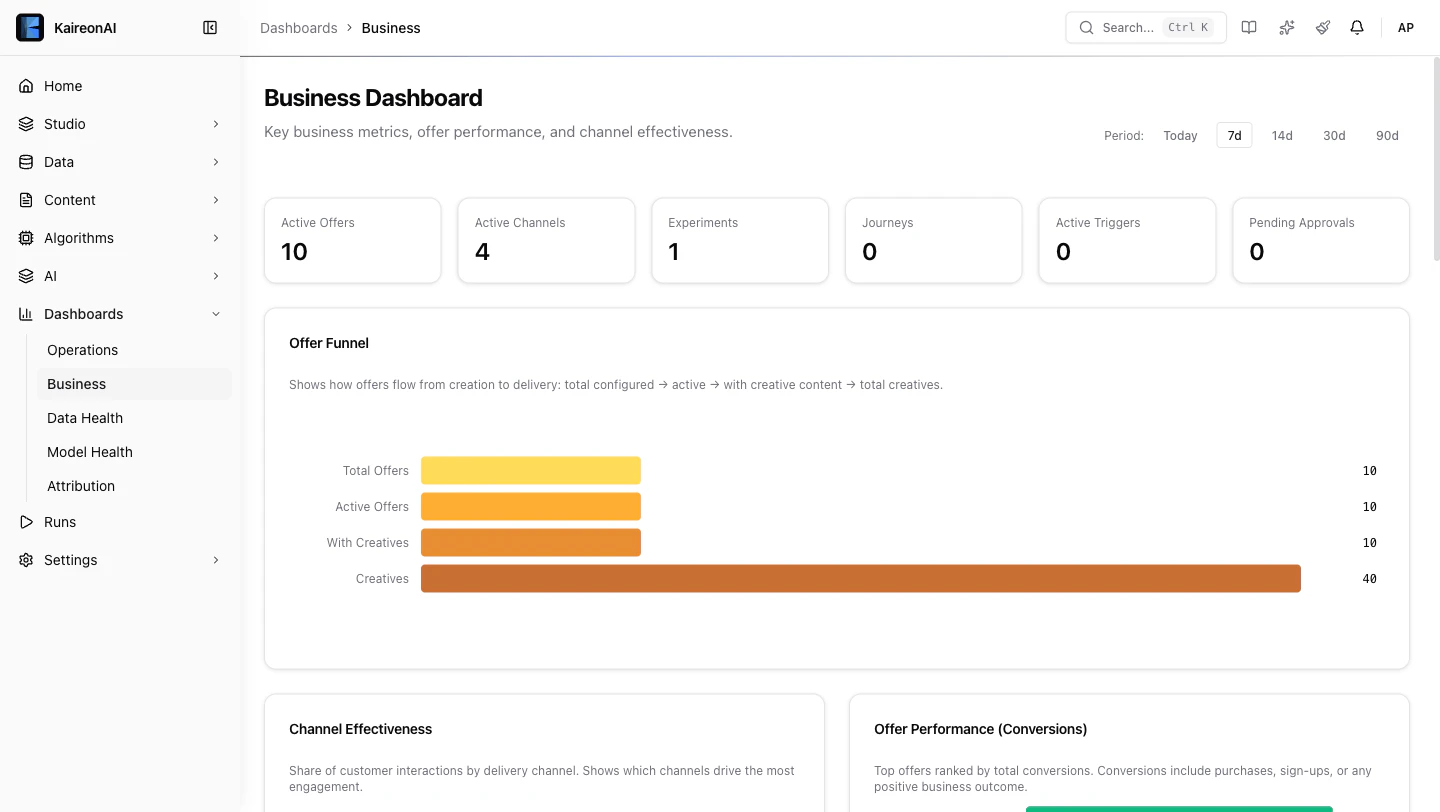
- Channel Effectiveness donut chart — which channels drive the most engagement
- Offer Performance bars — which offers get the most conversions
- Daily Trend line chart — impression and conversion volume over time
Operations Dashboard
Go to Dashboards → Operations:- Acceptance Rate by Offer — see which offers customers actually respond to
- Total Decisions — how many recommendations have been made
Model Health
Go to Dashboards → Model Health:- Select different models from the dropdown to see AUC trends
- Score Distribution — see how propensity scores are distributed
- Use the View buttons (All / By Channel / By Offer / By Category) to break down scores
Step 8: Explore the Decision Flow
Go to Studio → Decision Flows and click on Retail Rewards: Full Decision Pipeline.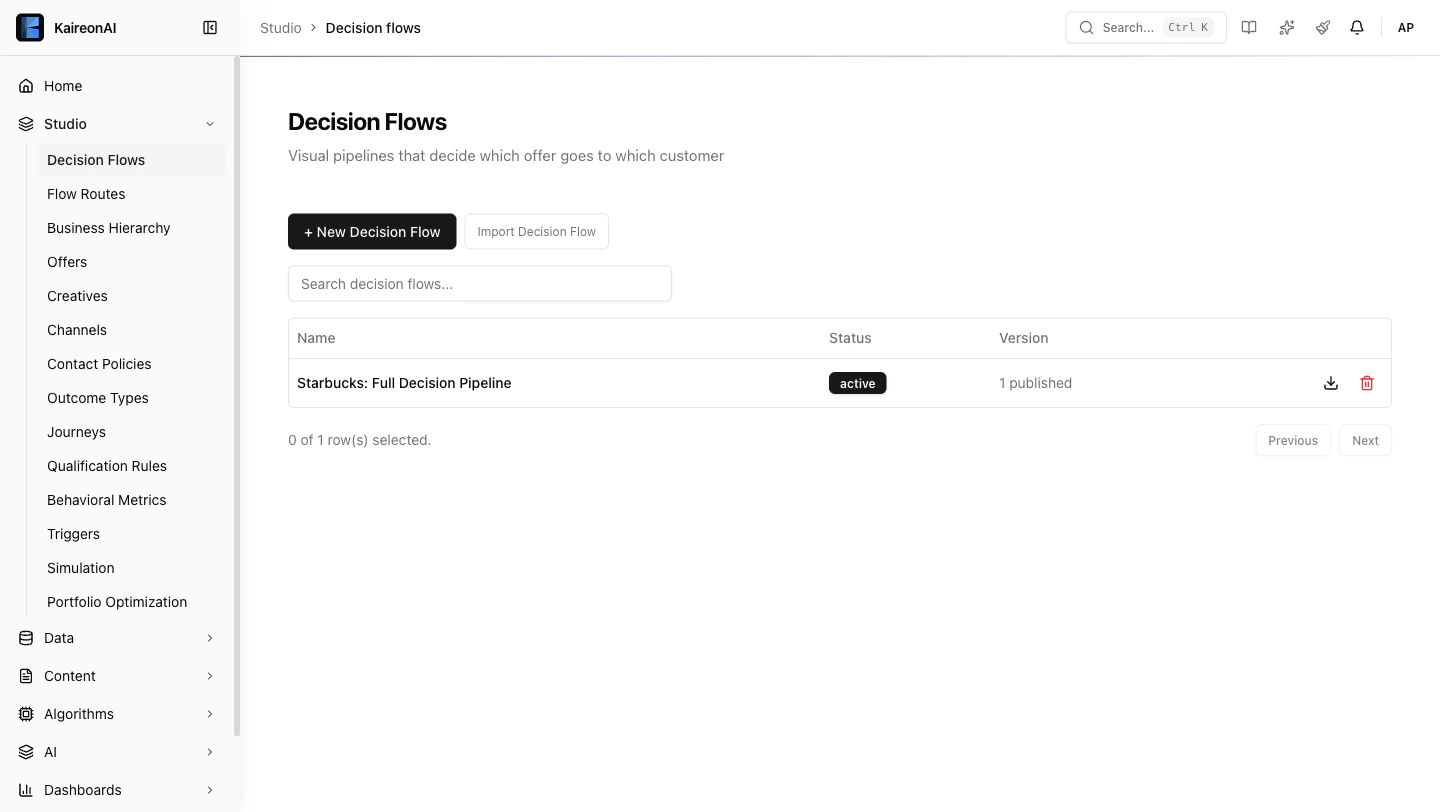
- Inventory — loads all active offers and their creatives
- Qualification — applies 5 rules, drops ineligible candidates
- Contact Policy — applies 5 suppression policies
- Score — runs the selected ML model (Scorecard, Bayesian, or Thompson Bandit)
- Rank — selects the top N candidates by score
- Response — formats the final recommendation
What’s Next?
Now that you’ve explored the retail rewards pipeline, try:- Creating your own offer — Studio → Offers → + New Offer
- Adding a decisioning gate — target a specific customer segment
- Setting up an experiment — Algorithms → Experiments to A/B test models
- Building a journey — Studio → Journeys for multi-step customer flows
- Connecting your own data — Data → Connectors to bring in real customer data